 Fitness Trak™
How to Back Up Workout Data So You Never Lose It
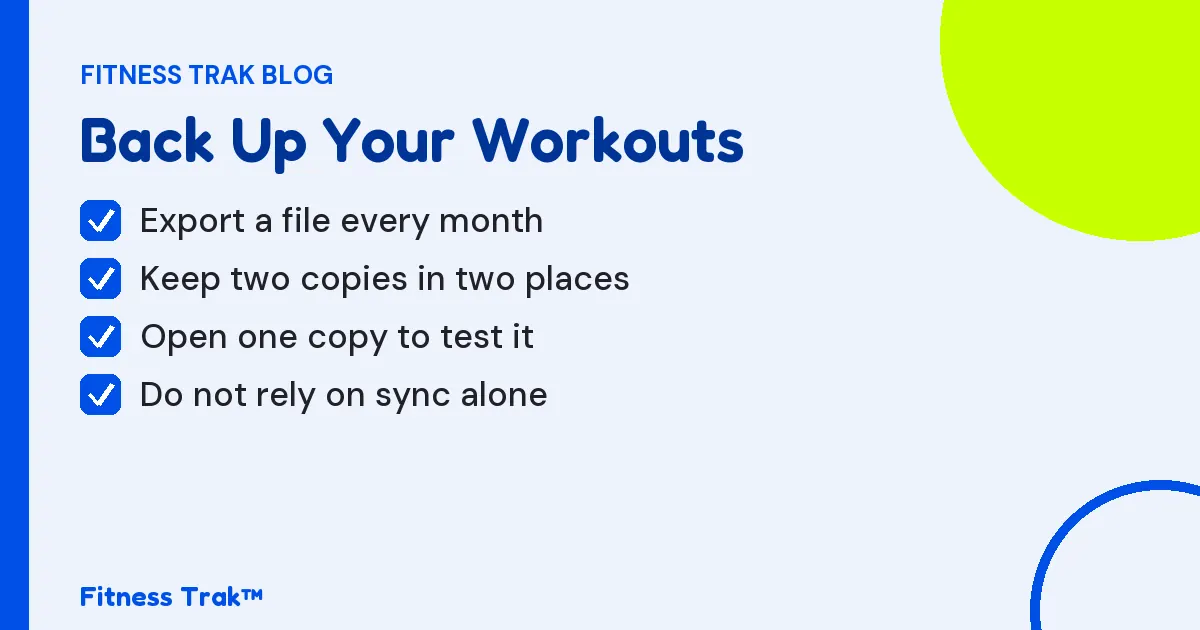
To back up workout data, export a file from your workout app on a regular schedule and keep at least two copies in two different places you control, such as a computer and a cloud drive. Sync and phone backups help, but a file you saved yourself is the copy you can always open.
Lost workout history is one of the most painful things that can happen to a lifter. Years of numbers tell you what to lift next. When an app update, a dead phone or a broken sync wipes them, you start guessing again. Here is a simple routine that works with almost any workout app.
Why workouts get lost
Most people assume their log is safe because it is "in the app." In practice, history disappears in a few common ways:
- A phone breaks, gets lost or is replaced, and the app did not restore
- A sync between devices fails and one side overwrites the other
- An account is closed, locked or forgotten
- An app shuts down or changes its plans
- A bad import or a tap on the wrong button deletes a block of workouts
Several of these have nothing to do with you. That is why a backup you hold is worth more than a promise that data is stored somewhere.
Sync is not the same as a backup
Sync copies your data between devices so they match. If something deletes a workout on one device, sync can delete it everywhere. A backup is a separate copy from a point in time that does not change when the live data changes.
Phone backups to iCloud or Google are helpful, but they restore the whole phone, not one app's history from last month. A file exported from the app itself is easier to check and easier to bring into a new app.
Steps
- Find your app's export option. Look in settings for words like export, backup or data.
- Export a full file, ideally a backup file and a spreadsheet such as CSV.
- Rename it with the date, like workouts-2026-11-19.csv.
- Save one copy on a computer or external drive.
- Save a second copy in a cloud drive or email it to yourself.
- Open one copy and check that the newest workouts are there.
- Set a monthly reminder to repeat the export.
What kind of file to keep
Two kinds of file are useful, and many apps offer both.
A backup file is made to restore the same app. It usually holds everything, including settings, routines and photos, but only that app may be able to read it.
A spreadsheet export, often CSV, is plain text. Any spreadsheet app can open it, and other workout apps can often import it. It may leave out photos or settings, but the sets and reps are what matter most.
If you can, keep both. The backup restores everything quickly. The spreadsheet keeps your history readable no matter what happens to the app.
How often to back up
Match the backup to how much you would hate to lose. Monthly is a good default for most people. If you train six days a week and track every set, you might do it every two weeks. Before any big change, back up first:
- Before updating to a new phone
- Before a big app update
- Before importing a large file
- Before deleting or merging exercises
Test the backup
A backup you never opened is a guess. Once in a while, open the exported file and look at it. Check the first and last dates, and pick one workout you remember to see that the numbers match. If the app can restore from a backup file, test it once on a spare device or after a fresh install, when it is safe to do so.
Keep health data private
Workout logs can include body weight, measurements, progress photos and injury notes. Treat those like any other personal health record. Store backups in places you trust, use a passcode on the phone and computer, and think twice before sharing a full backup file with anyone.
How Fitness Trak handles backups
Fitness Trak saves each set the moment you tap Set Done, and Undo is one tap away. There is no account and no server, so your data stays in the app on your phone. To keep a copy, go to Settings, then Data And Backup, then Export Backup, which saves one file wherever you choose. You can also export a spreadsheet, a Strong-format file, and trainer and PT files.
Body measurements, photos, injuries, sleep and protein stay out of iCloud and Google backups, and Apple Health is read live and never stored. That is why your own exported file matters. It is the copy you control. See the full list of what Fitness Trak tracks.
If you are switching apps and need to get history out first, our guide on how to export Strong workout data walks through it. For what belongs in the log itself, see what to write in a workout log.
Paper logs need a backup too
A notebook can be lost or soaked just like a phone. If you log on paper, take a photo of each page at the end of the week and keep the photos with your other files. Or copy the main numbers into a spreadsheet once a month. The goal is the same as with an app, a second copy in a second place.
Frequently asked questions
How do I back up my workout app data?
Look in the app's settings for an export or backup option and save a file. Keep one copy on a computer or drive and a second in a cloud drive or email. Repeat monthly and before any phone change or big update.
Does iCloud back up my workout app?
An iCloud phone backup may include app data, depending on the app and your settings, but some apps keep sensitive data out of it on purpose. Restoring a phone backup also replaces the whole phone. An exported file from the app is the more reliable copy for your workout history.
What is the difference between sync and backup?
Sync keeps devices matching, so a deletion on one can spread to all of them. A backup is a separate saved copy from a point in time. It stays the same when the live data changes, so you can go back to it.
What file format is best for a workout backup?
Keep a spreadsheet export such as CSV, since any spreadsheet app and many workout apps can read it. If your app also offers a full backup file, keep that too, because it restores routines, settings and other details faster.