 Fitness Trak™
How to Export Strong Workout Data and Keep It Safe
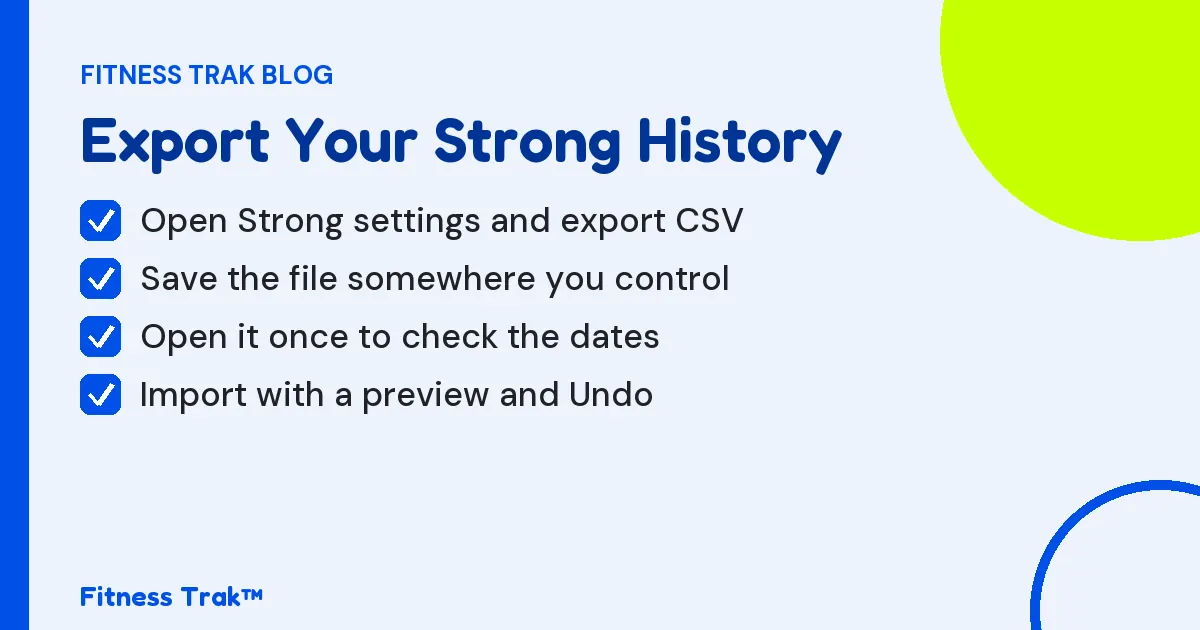
To export your Strong workout data, open the Strong app, go to Settings, and choose the option to export your data as a CSV file, then save that file to a place you control, like your files app, a computer or cloud storage. The file holds your past workouts set by set, so you can keep a backup or bring your history into another app.
Menu names change between app versions, so if you do not see the option right away, look in the profile or settings screen for words like export or data. Below is how to do it, what is in the file, how to check it, and how to move it to a new app without losing years of lifting.
Why export your workout history at all
Your training log is years of work. It holds the weights that tell you what to lift next, the PRs you chased, and the record of an injury you came back from. If that history lives only inside one app, you are trusting that app, that phone and that account to last forever.
People export for a few common reasons:
- Switching to a different workout app
- Changing phones or platforms
- Keeping a backup in case an account or sync fails
- Sharing a training history with a coach or physical therapist
- Doing their own charts in a spreadsheet
Even if you plan to stay with Strong, an export a few times a year is cheap insurance. Our guide on how to back up workout data covers a simple routine for any app.
Steps
- Open Strong and go to its settings or profile screen.
- Find the export option, usually labeled with words like export data or export to CSV.
- Choose where to save or share the file. Saving to your phone's files app or emailing it to yourself both work.
- Move a copy to a second place you control, such as a computer or a cloud drive.
- Open the file once in a spreadsheet app and check that the first and last workout dates look right.
- Rename the file with the date, like strong-export-2026-11-19.csv, so you know which copy is newest.
What is in a Strong CSV export
A CSV is a plain text spreadsheet. Each row is usually one set. Common columns include the workout date, the workout name, the exercise name, the set order, the weight, the reps, and sometimes distance, time, notes and effort. The exact columns can vary with app version and settings.
Because it is plain text, you can open it in Numbers, Excel, Google Sheets or any spreadsheet tool. That also means it is readable years from now, long after any one app is gone.
How to check the file before you trust it
A quick check takes two minutes and saves a bad surprise later.
- Scroll to the top and bottom to confirm the oldest and newest workouts are there.
- Pick one workout you remember and see that the weights and reps match.
- Check the units. If you lift in pounds, make sure the numbers look like pounds and not kilograms.
- Look for exercises with odd names. Custom exercises often keep whatever name you typed.
If something looks wrong, export again before you delete anything from the old app.
How to move the data into a new app
Most apps that accept a Strong file follow the same pattern. You pick the file, the app reads it, and it adds the workouts to your history. A good import shows you a preview before anything is saved, lets you choose kilograms or pounds, and gives you a way to undo it if the result looks wrong.
Common snags when moving:
- Exercise names do not match. "Bench Press (Barbell)" in one app may be "Barbell Bench Press" in another. Some apps let you match them up during import.
- Units flip. A 100 kg squat showing as 100 lb is a sign the unit choice was wrong. Undo and import again with the right unit.
- Duplicate workouts. If you import the same file twice, you may get two copies. Undo the second import.
Keep the old app installed until you have checked the new history against a few workouts you remember.
Bringing Strong history into Fitness Trak
Fitness Trak imports Strong and Hevy CSV files, along with Strava's activities.csv, GPX and TCX files, a coach's plan or your own spreadsheet. Each import shows a preview, asks kg or lb, and has one Undo if it is not right. On the way out, Fitness Trak exports a spreadsheet, a Strong-format file, trainer and PT files, and a backup file saved wherever you choose. There is no account and no server, so the file is yours.
Once your history is in, the next set is prefilled from last time, and last session's sets show in line, so the first workout after a switch already knows what you lifted. See the full list of what Fitness Trak tracks.
If you are moving from a paper notebook instead, our guide on what to write in a workout log helps you decide which fields to carry over.
Keep exporting after you switch
The lesson from any switch is that a copy you control is worth having. Pick a rhythm, like the first of every month or every training block, and export a backup from whatever app you use. Store at least two copies in different places. Then a lost phone or a failed sync costs you a few weeks at most, never years.
Frequently asked questions
Can I export my Strong data for free?
Strong has offered a CSV export of workout data from its settings. Features and plans can change between versions, so check the current app's settings screen for an export option before you rely on it.
What format does Strong export in?
Strong exports workout history as a CSV file, which is a plain text spreadsheet. Each row is typically one set, with columns such as date, workout name, exercise, weight and reps. Any spreadsheet app can open it.
Will my personal records come with the export?
The export holds the sets themselves, so any app that imports it can recalculate your bests from the weights and reps. Badges or labels that only exist inside the old app usually do not transfer as separate items.
How often should I export my workout data?
Once a month or at the end of each training block is a good habit. Keep at least two copies in different places, so losing a phone or an account never costs you more than a few weeks of training history.